Voice messages, AI credits and missing replies
Choose transcription and reply or staff handoff, and diagnose why the assistant did not answer.
- 1
Choose voice handling
In the assistant's auto-reply rules choose «Understand and answer» or «Send to staff». In automatic mode, supported recordings are transcribed before the assistant answers. If transcription is unavailable or fails, staff need to review the recording. It does not guess unheard content.
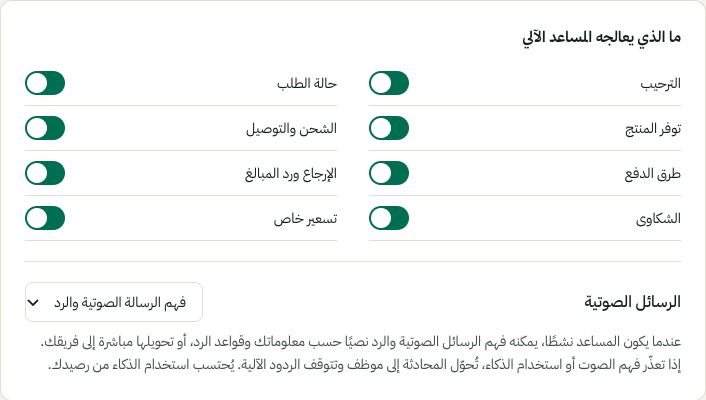
Choose the topics handled automatically and how voice notes are routed. Arabic interface shown; use the corresponding labels in your chosen language. Your available options and saved values may differ. Open the image to enlarge. - 2
Check the monthly balance
The AI usage panel shows included and purchased units, usage and renewal. Growth includes 3,000 units monthly and Pro 15,000; these are operation units, not a guaranteed number of conversations. The monthly balance is flexible without a fixed default ten-unit daily allocation. Merchant-configured safeguards or provider errors can still stop an operation.
- 3
Managed AI or your own provider
Managed AI uses your workspace allowance. A personal OpenAI or other provider key is optional when choosing your own-provider mode, which is billed by that provider. Do not paste keys into a customer conversation or support screenshot. Read the displayed mode and error before replacing any key.
- 4
If the bot is not responding
Check connection health, AI and auto-reply status, permitted channels/topics, working schedule, monthly balance, and the conversation's human takeover or pause state. A flow may handle the message before AI. Review the inbox warning; taking over a chat can intentionally pause the assistant. Send a fresh test after correcting the cause—do not expect old messages to replay automatically.