Add and maintain AI knowledge
Upload or paste policies, connect Notion or Google Drive, sync changes and test answers.
- 1
Open Knowledge base
In Automations → AI Assistant, expand the knowledge and provider options and find «Knowledge base». Keep the short business introduction for permanent identity and tone; use documents for detailed policies, FAQs and product explanations.
- 2
Add an approved document
Choose upload or paste text, give it a descriptive name and save. The current upload control accepts TXT, Markdown, CSV and TSV; convert unsupported documents to readable text first. Confirm the document appears and is enabled. An empty or disabled document is not useful knowledge.
- 3
Connect Notion or Google Drive
Choose the connector and approve only the pages or files intended for the assistant. In Drive, choose the files using the picker; access is limited to selected files. Sync after changes and check the result. A Google Drive connection supplies knowledge—it does not connect your Gmail inbox.
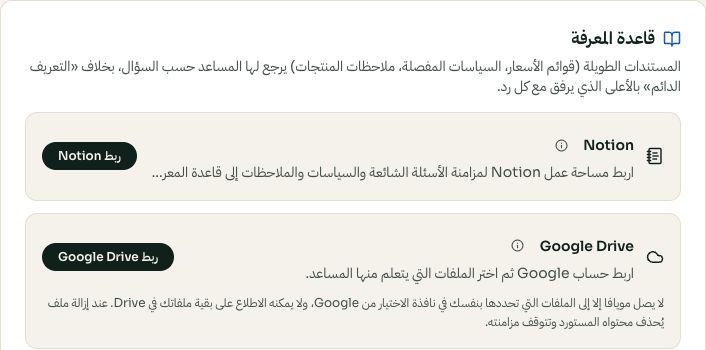
Choose a knowledge source; Google Drive and Notion are separate connections. Arabic interface shown; use the corresponding labels in your chosen language. Your available options and saved values may differ. Open the image to enlarge. - 4
Remove contradictions and verify an answer
Disable or replace outdated documents. Keep one approved version of each policy, and update its actual return or booking settings too. Ask the assistant a representative question in the private setup test. Prices and stock should come from connected business data; do not use an old document as a live stock list.