Sync products, variants, stock and packs
Understand real SKUs, store sync, warehouse kits and what Moyafa does not allocate automatically.
- 1
Sync and inspect a product
Connect your store, sync its catalog and open Products. Check the source, price, active/hidden state and each variant's attributes and SKU. Make catalog corrections in the owning store, then sync again. If a sync fails, resolve it instead of treating an empty list as zero inventory.
- 2
Match store and warehouse SKUs
A replacement must use the exact warehouse SKU for the intended variant. A name match is not enough. Resolve duplicate or missing SKUs with your provider. New warehouse connections validate available stock before dispatch; unknown or insufficient stock blocks sending.
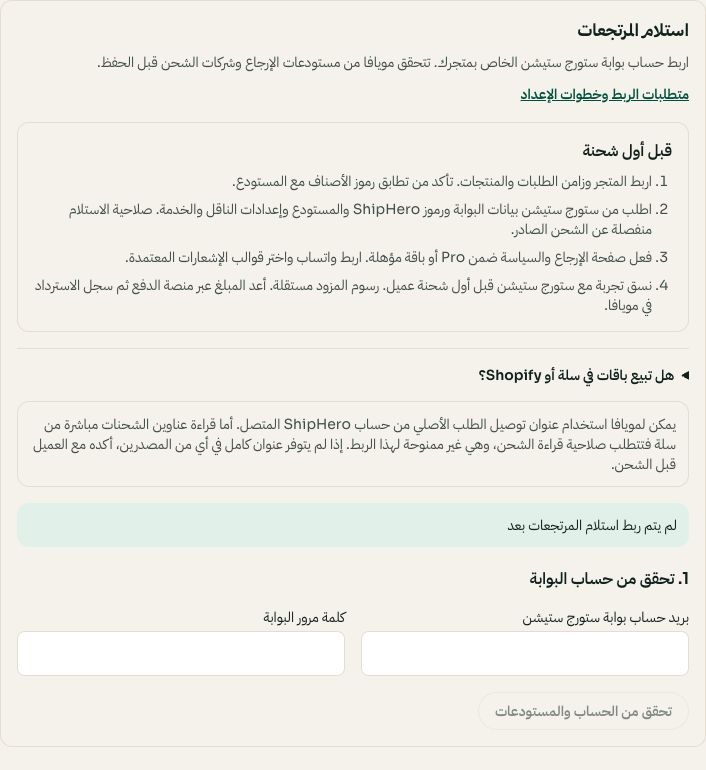
Review the warehouse checklist, then check your own Portal account. Arabic interface shown; use the corresponding labels in your chosen language. Your available options and saved values may differ. Open the image to enlarge. - 3
Set up packs in Salla or Shopify
Ask Storage Station to define kit SKUs and component quantities for each 3/6/12 pack and keep the existing store stock sync active. For example PACK-3 contains three UNIT components. Confirm the provider handles shared components across packs. Moyafa uses the kit SKU and warehouse quantity; it does not add a second shared-stock allocator or store inventory writer.
- 4
Understand local pack declarations
A pack declaration in Moyafa can describe component quantities for local availability calculations. It does not create a ShipHero kit or turn on inventory write-back. Existing managed merchant allocators keep their own configuration; do not copy another store's setup into yours.